RØDECaster Pro — Common Issues and Fixes
Troubleshooting for your podcast room
Power & recording basics
No power to RØDECaster
Make sure the power cable is securely screwed in next to the red power button.
Check the wall socket is switched on.
Press the red On button and wait for the device to power up.
Saving the recording
If you're recording to an SD card, make sure to save properly before your session ends.
Hit REC to stop recording and let the RØDECaster save to your microSD card.
Eject the SD card successfully before you leave.
⚠️ If the power in your room goes out, your recording will likely be lost. We can't recover lost recordings or compensate for any loss — don't leave saving until the last minute.
Adjusting screen brightness
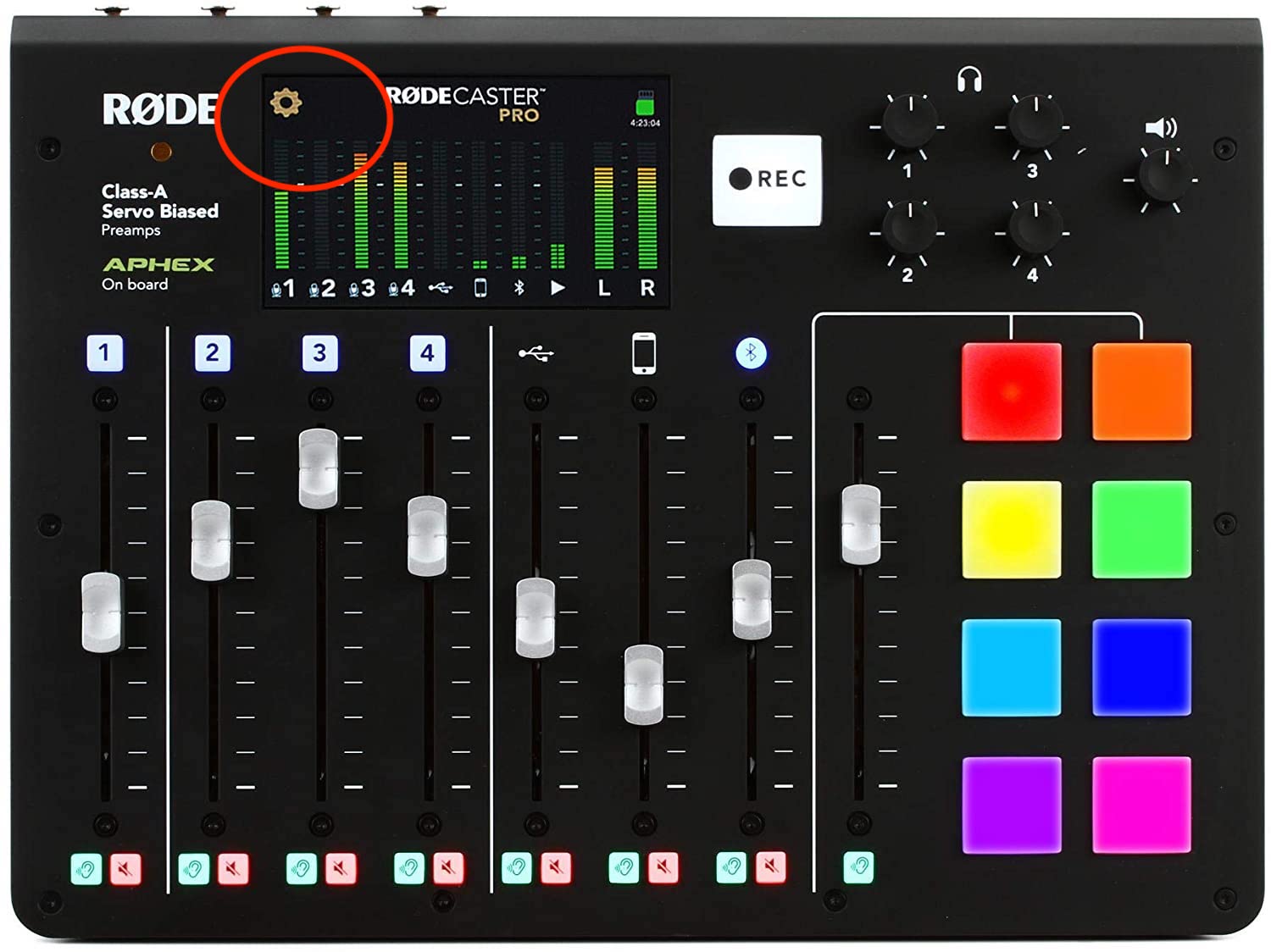
Tap the Settings (gear) icon on screen.
Go to Hardware > Advanced.
Turn up the brightness for the screen/controls.
Audio issues
Noisy mics when recording
This is often caused by aggressive FX processing on the mics. Try adjusting or turning it off:
1. Tap the Cog icon (Settings) > Advanced > Audio > Processing.
2. Make sure "Effect Edit Mode" is ON.
3. Press the numbered button for the relevant channel (1–4), then tap "Processing" on screen to edit or turn it off.
Mic not picking up sound
Make sure the fader is turned up for the correct microphone/input on the RØDECaster Pro.
If you've connected a phone or laptop, check that the device's volume is also turned up.
No sound from headphones
Make sure the headphones and microphones are connected to the corresponding input/output areas at the back of the RØDECaster Pro.
Make sure the volume is turned up for the corresponding headphone in the volume levels at the top right of the device.
Double-check the volume is turned up on the volume fader for the corresponding microphone(s).
Check the mute button isn't switched on, under the volume fader for your microphone.
No sound upon playback
In GarageBand:
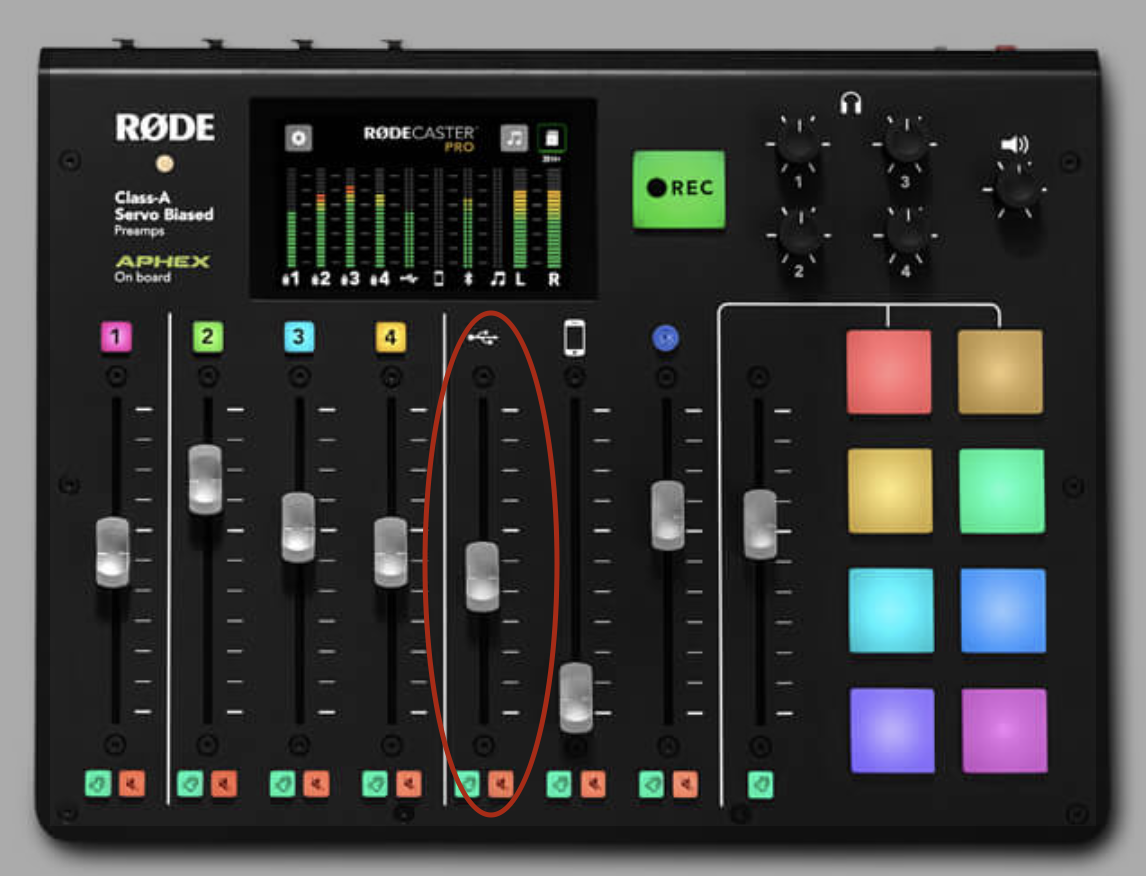
Slide up the USB channel fader.
Switch off record enable on each track.
Hit play.
In other DAWs: you may also need to set the output of each track to "RODECaster Pro Stereo" individually.
Connectivity
Trouble connecting via Bluetooth
Make sure Bluetooth is enabled on your device.
Press the Gear button on the RØDECaster.
Press the Hardware button.
Go to the Bluetooth section.
Check your Bluetooth settings here and pair a device by tapping the Pair button.
Issues connecting via Skype
To interview over Skype, you'll need to connect your laptop to the RØDECaster via Bluetooth.
Recording & software
Recording onto a laptop
You'll need a USB-C cable first. Here's a quick video explaining how to set up this type of recording session.
Recording multi-track through laptop on GarageBand
Multi-track showing as a PolyWAV file on SD card and not opening
If you record to an SD card in multi-track mode, the session saves as a single PolyWAV file — that's normal.
Just open it in a DAW that supports PolyWAV (e.g. Reaper, which is free). It'll automatically split into 14 separate tracks:
Tracks 1–2: full stereo mix.
Tracks 3–14: individual tracks.
Still stuck? Don't worry — our team's on live chat and WhatsApp 24/7, and we're always happy to help.